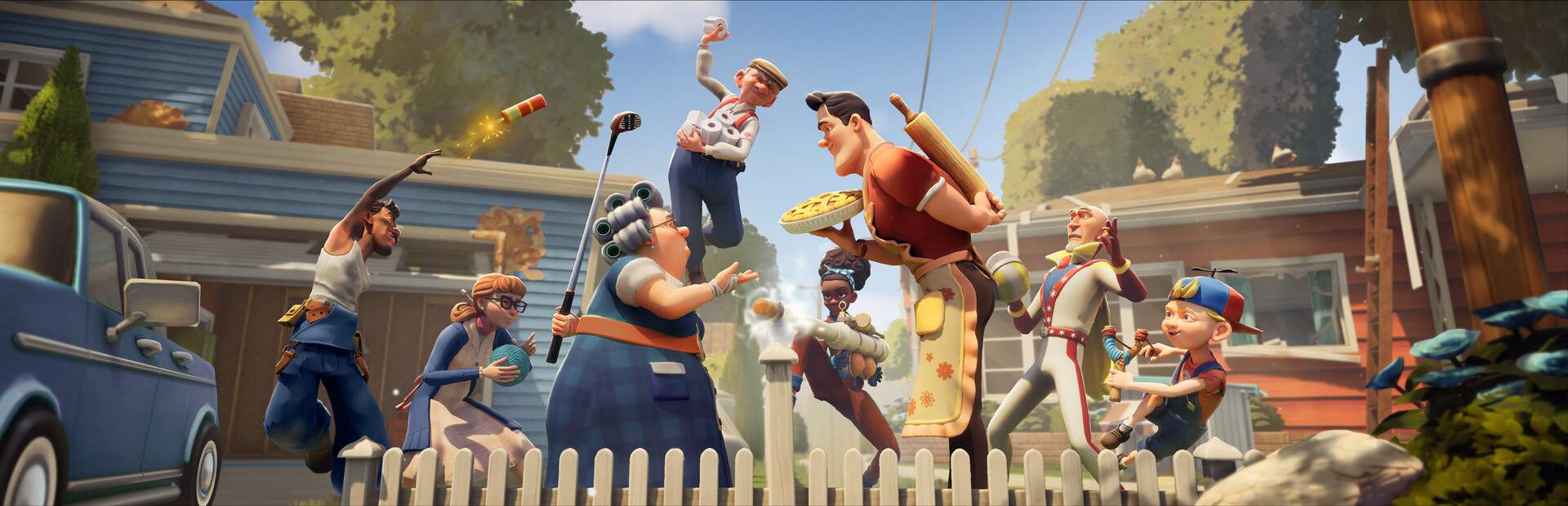
- Steam Deck compatibility: Neighbors: Suburban Warfare runs smoothly at medium settings with stable frame rates.
- Controller quirk: Menus may require the trackpad mode before face buttons respond properly.
- Core loop: Set bear traps, upgrade fences and windows, and deliver resources to shops.
- Combat basics: R2 for quick punches, hold for heavy swings that deal double damage.
- Night mechanic: Guard dogs protect homes at night — plan raids and defense around the day cycle.
Steam Deck Performance Overview
Neighbors: Suburban Warfare plays surprisingly well on the Steam Deck. Out of the box, the game runs at medium settings without noticeable stutters during tutorial and combat encounters, and performance remains steady even when multiple intruders swarm your lawn.
Video Highlights:
- Full Steam Deck gameplay session covering the tutorial and first defense mission
- Confirms smooth performance at medium settings with no major drops
- Demonstrates PS5 controller navigation quirks that also apply to the Deck
- Shows trap placement, weapon comparisons, and the nighttime dog mechanic
One notable quirk: menu navigation sometimes ignores the D-pad entirely. On a DualSense this means flicking the trackpad cursor first; on the Steam Deck, the built-in trackpads and gyro handle this naturally, which actually gives the Deck an advantage over standard controllers.
Start at medium settings and only raise to high after testing a full defense wave. Heavy combat with multiple players, dogs, and destructible fences is where frame drops are most likely to appear.
Recommended Settings & Controls
The default control scheme maps cleanly onto the Deck's layout. Here is what to expect and how to optimize it:
| Setting | Recommendation | Notes |
|---|---|---|
| Graphics preset | Medium | Smooth, stable; try High after testing |
| Movement | Left stick, hold to sprint | Sprint drains a stamina timer |
| Inventory | L1 | Open/close item wheel |
| Primary attack | R2 | Light swing or place item |
| Secondary function | L2 | Every item has a second use |
| Interact / pickup | Face button (Square equivalent) | Doors, traps, resource crates |
| Drop item | Triangle equivalent | Essential for resource delivery |
| Crouch | Hold button | Useful for sneaky approaches |
If face buttons stop responding in menus, switch to trackpad cursor mode first, then confirm with face buttons. This behavior is consistent across controller types in the current build.
Control flexibility breakdown:
Trackpad Mode
- Best for menus and settings
- Mimics mouse navigation
- Deck's built-in pads excel here
Gamepad Mode
- Standard in-game combat
- Full button mapping works
- Recommended for action phases
Hybrid Setup
- Gamepad + trackpad as fallback
- Smoothest overall experience
- Combines both strengths
Beginner Defense Setup: Step-by-Step
The tutorial teaches the core defense loop. Follow these steps to build a solid home base in your first match:
Collect Bear Traps
Head to the garage and fetch three bear traps. Identify weak points in your fence line — gaps and breaks are where intruders push through.
Place Traps at Weak Points
Open your inventory with L1, equip a trap, and deploy it with R2. Position one at each fence gap and one near a window entry route.
Buy the Hammer
Visit the shop's defensive tab and purchase the hammer. Upgrades cost money — fences and windows each raised the defense tier for around 250 currency per upgrade.
Upgrade Windows and Fences
Equip the hammer and use the left trigger at structures. Upgraded windows and fences take significantly longer for intruders to break through.
Deliver Resource Crates
Break the resource box at the construction yard, carry crates to any of the three shops, and deliver with R2. Deliveries upgrade shops and unlock better equipment — including automatic front fence upgrades.
Resource delivery is the snowball mechanic. Two delivered crates visibly upgraded the front fence in playtesting — prioritize runs to the construction yard early, before enemies organize their offense.
Combat & Weapons on the Deck
Combat is simple but satisfying once you know the inputs. Quick punches (R2) chain fast, while uppercuts (LB equivalent) deal heavier damage. Every item has two functionalities — one on R2, one on L2.
| Weapon | Damage Style | Notes |
|---|---|---|
| Boxing gloves | Fast punches, uppercut hold | Good sustained damage |
| Hammer | Structure-focused | Takes chunks off fences, also hits players |
| Crowbar | 1.5x structure damage | Best early breaking tool |
| Barricade | Defensive, ~120 currency | Blocks entry points |
| Bear trap | Area denial | Free from garage, core defense |
Light swings against an enemy fence dealt about 18 damage, while heavy swings doubled that at 36 — though light attacks come out noticeably faster, so mix both depending on the target's remaining health.
Windows are soft targets. Breaking an enemy window earned a 500 currency bonus in testing — often faster than grinding through their main fence with a crowbar.
Night changes everything. When darkness falls, each home is guarded by a dog, making raids far riskier. Use the day to gather resources and fortify, and expect your own pup to cover you overnight. If you get knocked out, you respawn at your house after a short delay — the fight isn't over.
First Match Checklist
Run through this checklist before your first serious match on the Deck:
Steam Deck First Match Goals:
- Confirm graphics preset at medium and test a combat wave
- Set trackpad fallback for menu navigation
- Collect and place all three bear traps from the garage
- Purchase the hammer and upgrade two windows
- Deliver at least two resource crates to shops
Sprinting is limited by a visible countdown timer near your character indicator. Save sprint bursts for resource runs back to the shops, not for casual traversal.
Steam Deck FAQ
Q: Does Neighbors: Suburban Warfare run well on Steam Deck?
Yes. The game runs smoothly at medium settings with no noticeable problems during the tutorial and full defense encounters. Test higher settings gradually, since heavy multi-player combat is the most demanding scenario.
Q: Why don't face buttons work in the game's menus?
Menus sometimes require cursor-style navigation. On the Steam Deck, use the built-in trackpads to move the cursor, then confirm with face buttons. In-game combat controls work normally without this workaround.
Q: What's the best early defense strategy?
Grab three bear traps from the garage and cover fence gaps first. Then buy the hammer, upgrade windows (about 250 each), and deliver resource crates from the construction yard to the shops — crate deliveries trigger fence upgrades and unlock better gear.
Q: How does the nighttime mechanic work?
At night, each home is guarded by a dog, making offensive raids much more dangerous. Use daylight to farm resources and fortify, and rely on your own guard dog to protect your property overnight.