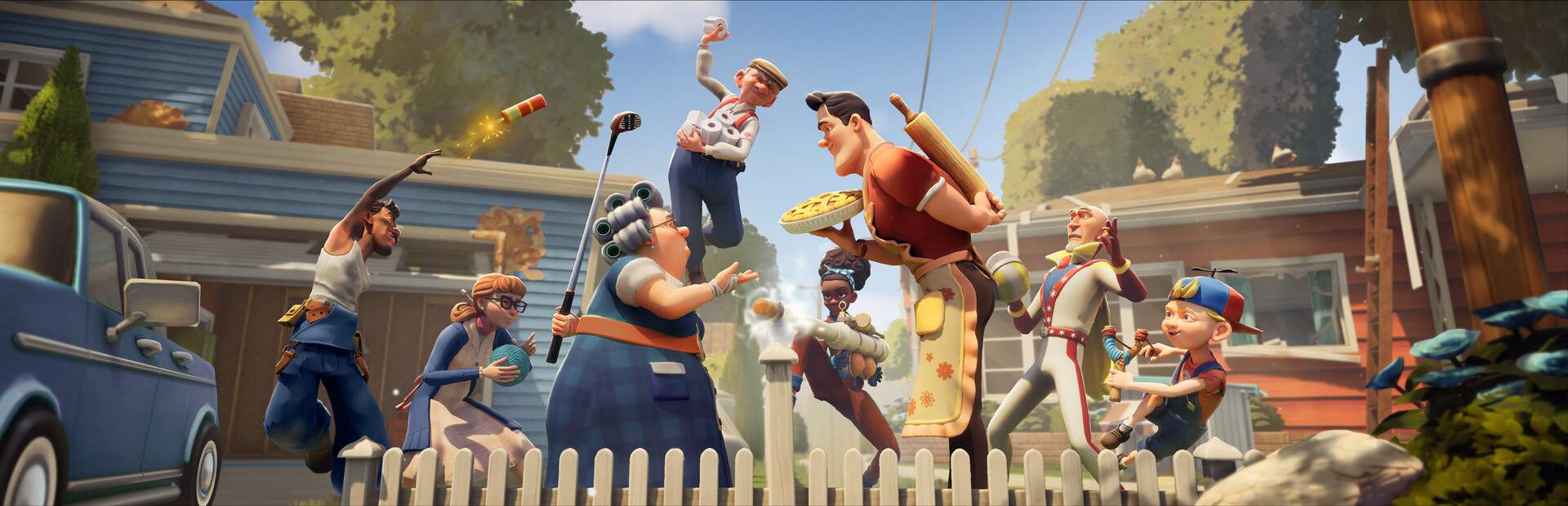
- Neighbors Suburban Warfare cross platform play lets PC and console neighbors join the same chaotic matches.
- Crossplay is enabled by default, but party invites require adding friends through your platform account.
- PC (Steam) and consoles are the primary supported platforms for online multiplayer.
- Voice chat is team-based, so coordinate with your squad before the sabotage begins.
- Check official channels for the latest platform additions and update notes.
Cross Platform Overview: What Platforms Are Supported?
Neighbors Suburban Warfare is built around asynchronous multiplayer mischief between two teams of neighbors, which makes cross platform support one of the most important features for keeping the player base healthy. The game is available on PC via Steam as well as current-generation consoles, and online matches are designed to pool players together so matchmaking stays fast regardless of where you bought the game.
Before jumping into a match, watch this quick walkthrough covering how to get set up with the game:
Video Highlights:
- Where to find and install Neighbors Suburban Warfare on your platform
- First-time launch and account setup basics
- Getting ready for your first online match
- Quick overview of the core multiplayer loop
The table below summarizes the current platform situation at a glance:
| Platform | Availability | Online Multiplayer | Crossplay Pool |
|---|---|---|---|
| PC (Steam) | Available | Yes | PC + Console |
| PlayStation 5 | Available | Yes | PC + Console |
| Xbox Series X/S | Available | Yes | PC + Console |
| Nintendo Switch | Not confirmed | N/A | N/A |
New platforms are sometimes added through post-launch updates. Always verify current availability on the official Neighbors Suburban Warfare store page or the publisher's announcements before purchasing for a specific platform.
How Crossplay Works in Matches
Cross platform play in Neighbors Suburban Warfare follows a straightforward matchmaking model. When you queue for an online match, the game places you in a shared player pool with users from other platforms. This keeps wait times short and ensures that both the villain team and the defender team always fill up with real players.
Here is how the key crossplay systems compare:
| Feature | Crossplay Enabled | Notes |
|---|---|---|
| Public Matchmaking | Yes | Shared pool across platforms |
| Friend Parties | Yes | Requires friend code or platform invite |
| Private Matches | Yes | Host shares lobby code |
| Progression Sync | Per account | Progress tied to your platform account |
| Voice Chat | Team-based | Built-in chat for squad coordination |
Public Matchmaking
- Fastest way to play
- Mixed-platform lobbies
- Balanced team assignment
Friend Parties
- Play with specific friends
- Works across platforms
- Needs friend list setup first
Private Matches
- Custom lobbies with codes
- Great for community events
- Full control over teams
Teamwork decides matches. Because voice chat is limited to your own team, agree on roles (who sabotages, who guards) in the first 30 seconds of a match. Cross platform teammates may use different controllers, but chat works the same for everyone.
Step-by-Step: Setting Up a Cross Platform Party
Follow these steps to team up with friends playing on different platforms. The process is simple once your friend list is configured.
Launch and Sign In
Start Neighbors Suburban Warfare on your platform of choice and sign in with your platform account (Steam, PlayStation Network, or Xbox Live). Your online profile is created automatically on first launch.
Add Your Friends
Open the in-game friends menu and add teammates using their friend code, or invite them directly through your platform's native friend list. Both methods connect you for cross platform party play.
Form a Party
Once friends accept, invite them into your party from the lobby screen. The party leader controls when the group queues for a match.
Queue and Coordinate
Select your preferred mode and queue up. Use the pre-match phase to assign roles and pick characters that complement your squad's strategy.
Review and Repeat
After the match, check your results screen, adjust your loadout or team composition, and requeue. Party progress and stats carry across sessions on your account.
Matches are team-based with equal sides, so build your party around the standard team size for your chosen mode. Larger groups may need to split across the villain and defender teams in private matches.
Crossplay Tips: Controller vs Keyboard & Mouse
Because cross platform lobbies mix input types, a few practical differences are worth knowing before you queue.
| Input Method | Strengths | Best For |
|---|---|---|
| Keyboard & Mouse | Precise aiming, fast camera turns | Ranged gadgets, fast reactions |
| Controller | Comfortable movement, aim assist support | Casual play, longer sessions |
| Either Input | Same matchmaking pool, same gadgets | All modes |
- Aim assist settings can usually be adjusted in the options menu; experiment to find what feels fair.
- Gadget timing matters more than raw aim in many objective situations, so controller players remain competitive.
- Latency is generally stable in mixed lobbies, but a wired connection reduces input lag during sabotage chases.
Use a wired connection or a strong 5 GHz Wi-Fi signal before ranked or private matches. Crossplay lobbies route through shared servers, so your own connection quality is the biggest factor in your experience.
Pre-Match Crossplay Checklist
Run through this checklist before your next cross platform session to avoid mid-match surprises:
Crossplay Session Checklist:
- Confirm the game is updated on your platform
- Add teammates to your in-game or platform friend list
- Test voice chat in the party lobby
- Adjust aim assist and sensitivity settings
- Agree on team roles before queuing
Crossplay features, supported platforms, and party options can expand with seasonal updates. Follow the official Neighbors Suburban Warfare channels and the Steam news page for patch notes and new platform announcements.
Cross Platform FAQ
Q: Is Neighbors Suburban Warfare cross platform between PC and consoles?
Yes. Neighbors Suburban Warfare supports cross platform online play, allowing PC (Steam) players and console players to join the same matchmaking pool and team up in parties or private matches.
Q: Do I need a separate account to play with friends on other platforms?
No separate account is required. You sign in with your existing platform account (Steam, PlayStation Network, or Xbox Live), then add friends through the in-game friend code system or your platform friend list to form cross platform parties.
Q: Does my progression carry over between platforms?
Progression is tied to the account you play on. Crossplay lets you play with everyone, but unlocks and stats generally do not transfer between separate platform accounts. Check official announcements for any changes to progression sharing.
Q: Can I turn off crossplay if I prefer same-platform matches?
Matchmaking settings may offer platform-based filtering depending on the mode and current update. If available, you can find this option in the online settings menu. Keep in mind that restricting the player pool can increase queue times.